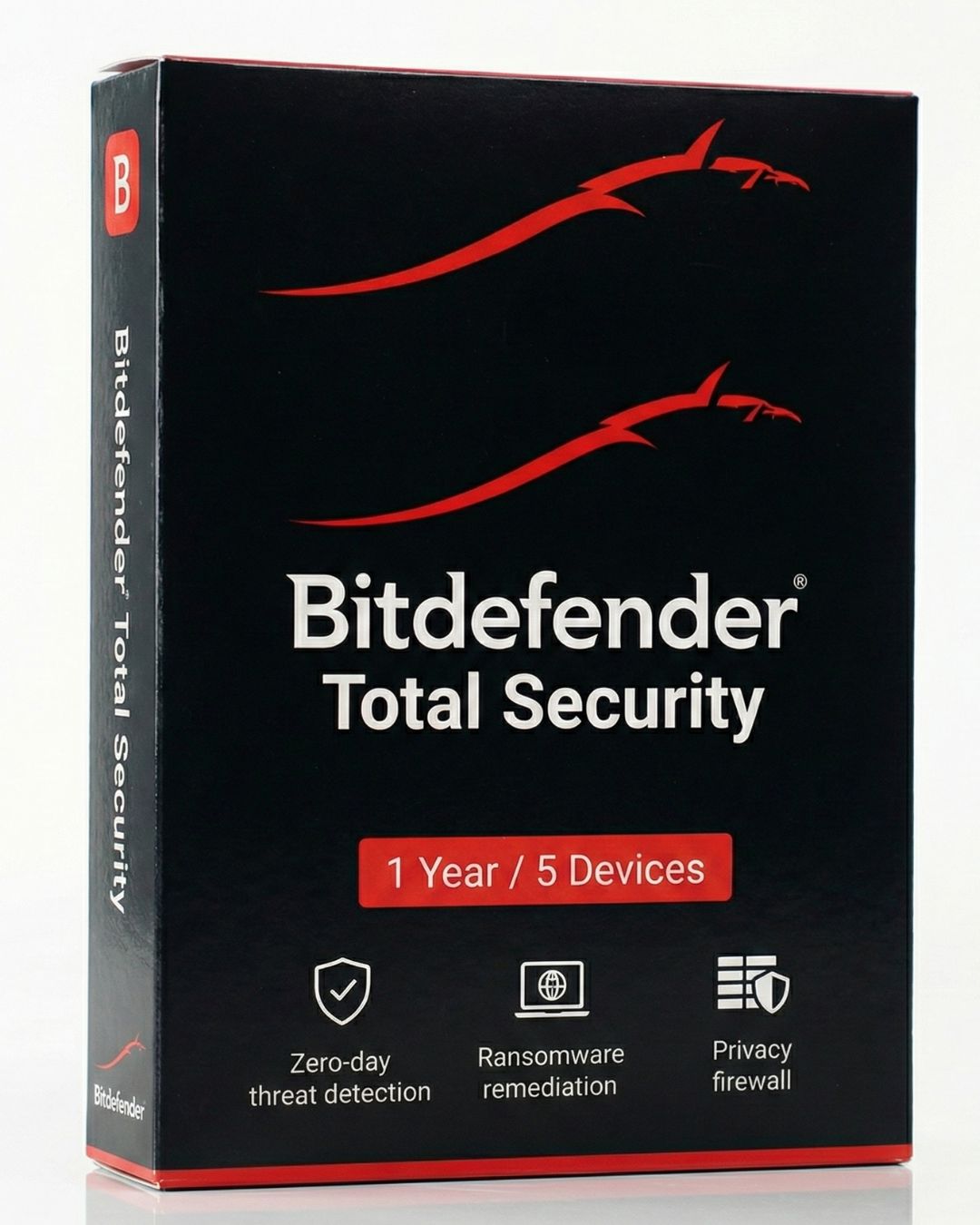
How to Install Bitdefender Total Security
Bitdefender is widely considered one of the lightest, fastest antivirus engines on the market. To ensure it configures itself properly to your system's hardware, follow this installation guide.
Step 1: The Bitdefender Central Dashboard
Bitdefender manages all your device licenses through a single web dashboard called "Bitdefender Central."
- Create an account at central.bitdefender.com.
- Navigate to "My Subscriptions" and enter your activation code.
- Go to the "My Devices" tab and click "Install Security." This will download the custom installer file tailored to your account.
Step 2: The Installation Process
Run the downloaded installer. Bitdefender will quickly scan your PC to ensure there are no active, aggressive malware threats attempting to block the installation process.
Once the scan is clear, it will download the remaining application files. Ensure you have a stable internet connection for this step, as the software needs to pull the most recent malware definitions from the cloud.
Step 3: Checking "Autopilot"
The beauty of Bitdefender is its Autopilot mode. Once installed, open the main dashboard and ensure Autopilot is toggled ON.
Autopilot acts as your silent security advisor. Instead of interrupting your work or gaming with pop-ups asking for permission to block a file, Autopilot makes the optimal security decision automatically in the background.
Enable Ransomware Remediation
Go to the "Protection" tab and ensure "Ransomware Remediation" is active. This feature will automatically create secure backups of your files if it detects suspicious encryption activity, allowing you to instantly restore your data if an attack occurs.